Hathor Forge Wallet Service
The wallet service is the component of Hathor Forge responsible for all wallet operations. It runs as a background process — the same headless wallet that powers production integrations — connected to the local Hathor node that Forge orchestrates. The Forge desktop UI and the AI/MCP tools both drive wallets through this service, so anything you can do in the UI is also available programmatically through its HTTP API.
Its functionalities include:
- Managing wallet keys and addresses.
- Tracking balances and transactions.
- Signing transactions before sending them.
- Communicating directly with the local Hathor Node.
Prerequisites
- A working Hathor Forge installation, running with the wallet service started. See Running Hathor Forge for installation and startup.
- The wallet service listens on port
8001by default (see the ports table).
Getting Started
-
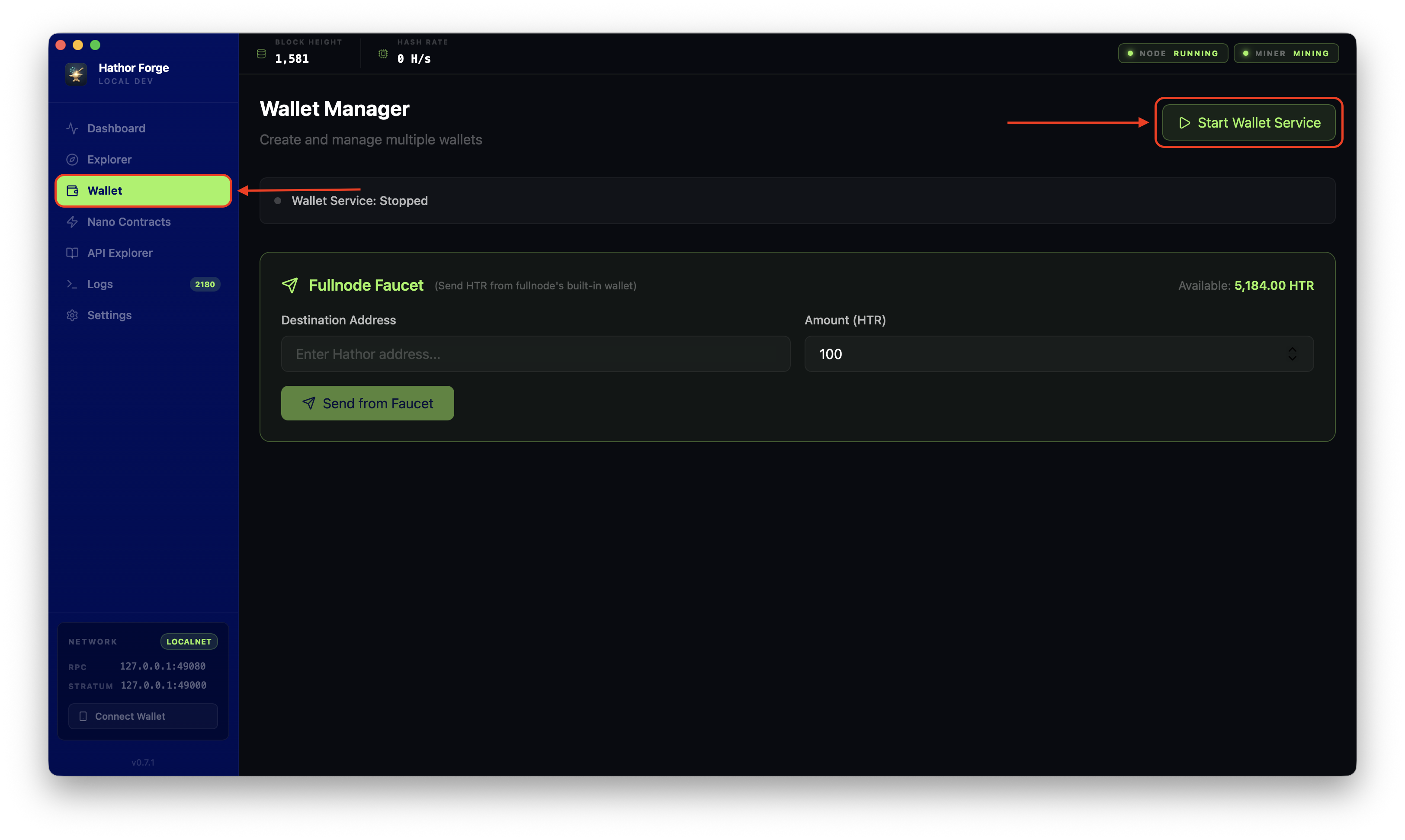
Once you have Hathor Forge up and running, you will have two different options to create a new wallet:
- You can create a new one in the Wallet section by clicking on Start Wallet Service and creating your wallets.
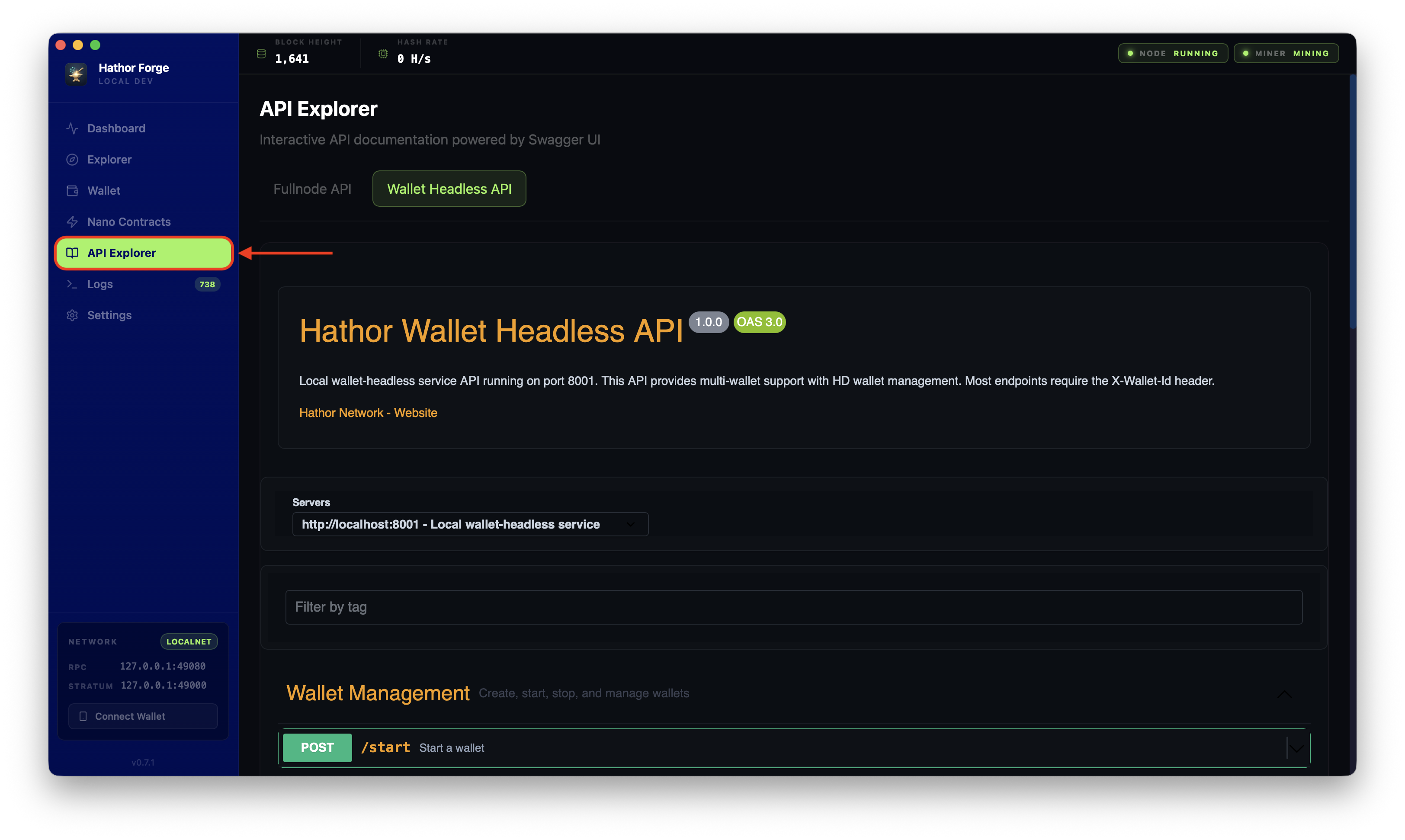
- Alternatively, you can also use the API endpoints to create and manage wallets programmatically. For example, to start a wallet against the local service on port
8001:
curl -X POST \
  -H 'Content-Type: application/json' \
  -d '{"wallet-id": "dev", "seedKey": "default"}' \
  http://localhost:8001/start
The wallet service exposes the full headless wallet HTTP API — the same endpoints documented for production use.
- You can create a new one in the Wallet section by clicking on Start Wallet Service and creating your wallets.
-
After creating the new wallet, you will be able to view its details, including the balance, transaction history, and addresses.
-
Given that the mining service is running automatically within Hathor Forge, you will start generating blocks to make sure your transactions will be confirmed and your balance will update in real time.
Finding a Receiving Address
The wallet address will be the destination used to receive tokens. One of the first practical actions in Forge is locating that address and copying it for later steps.
In the Wallet section, once a wallet is started:
-
Open the Addresses tab (or panel) for the wallet.
-
The current receiving address is shown at the top of the list, labelled as the active address.
-
Use the copy icon next to it to copy the address to your clipboard.
tipThe fullnode starts with a pre-funded development-only HD wallet that receives mining rewards. You should not use this seed on mainnet or testnet: it is a well-known development seed shipped with Forge, so anyone could derive its keys and spend any funds sent to it on a real network. It exists purely to give you spendable balance locally.
Address: WXkMhVgRVmTXTVh47wauPKm1xcrW8Qf3Vb -
You can also fund your different addresses using the mined tokens from the local FullNode Faucet in the Wallet section.

Mobile Wallets
Hathor Forge is also equipped to connect to mobile wallets that support custom networks. The official Hathor Mobile Wallet (iOS and Android) supports adding a custom network under its developer settings. To connect your mobile wallet to the local blockchain, add a custom network with the following parameters:
| Parameter | Value | Notes |
|---|---|---|
| Network name | privatenet | The network identifier Hathor Forge runs locally |
| Node URL | http://<your_machine_ip>:8080/v1a/ | Replace <your_machine_ip> with your computer's LAN IP address — localhost will not resolve from a phone |
| Explorer URL | http://<your_machine_ip>:3001 | Optional; enables transaction links inside the wallet |
| Explorer service URL | http://<your_machine_ip>:8080/v1a/ | Optional; used for address and token lookups |
Your mobile device and the machine running Hathor Forge must be on the same local network. Find your machine's IP with ipconfig getifaddr en0 (macOS) or hostname -I (Linux).
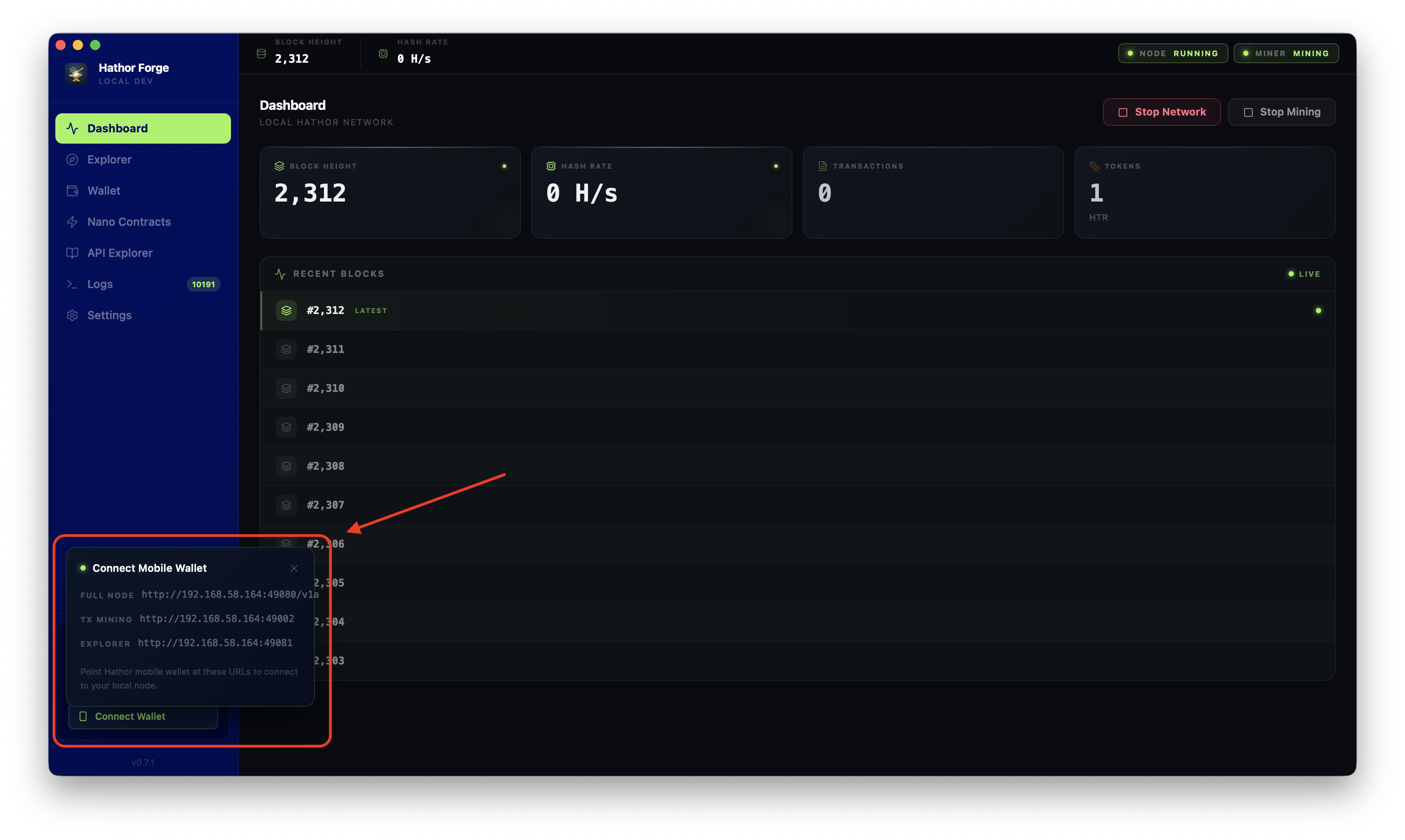
If the wallet cannot connect, the cause is almost always the network path rather than the wallet: confirm both devices are on the same Wi-Fi, that you used the machine's LAN IP (not localhost), and that a local firewall is not blocking inbound connections to ports 8080 and 3001.
Next steps
- Send a transfer: move tokens between wallets using the wallet service API.
- Create tokens: mint custom tokens and NFTs in your local environment.
- MCP integration: let an AI assistant create and fund wallets for you.
- Hathor Forge overview: the full local stack and how the wallet service fits into it.